F1 TELEMETRY & YOUR OWN AI RACE ENGINEER IN REAL-TIME
Sync your console or PC with our high-fidelity interactive dashboard. Analyze real-time telemetry with the official F1 TV aesthetic and voice chat with your own AI-powered Race Engineer.
The Dashboard in Action
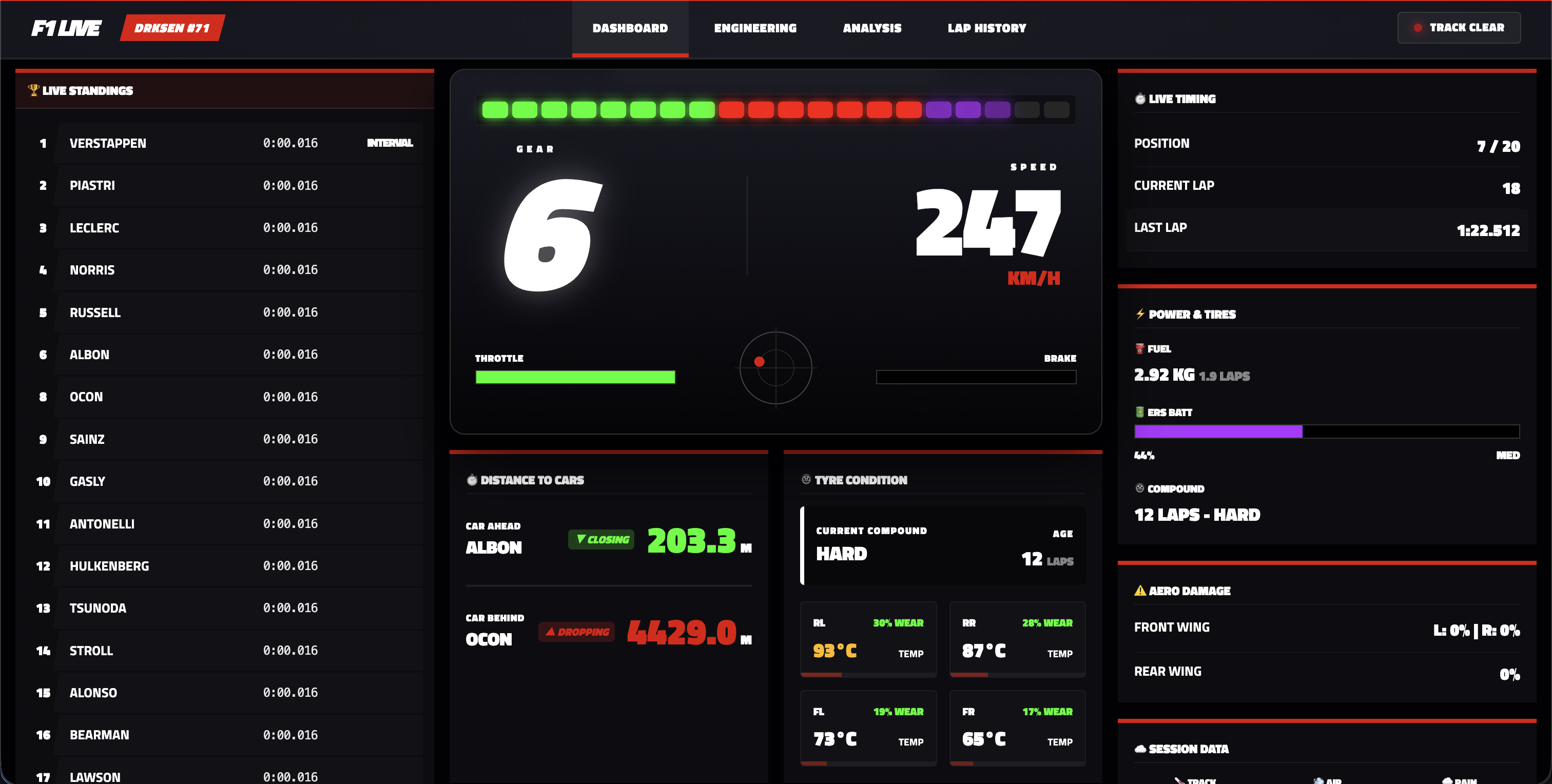
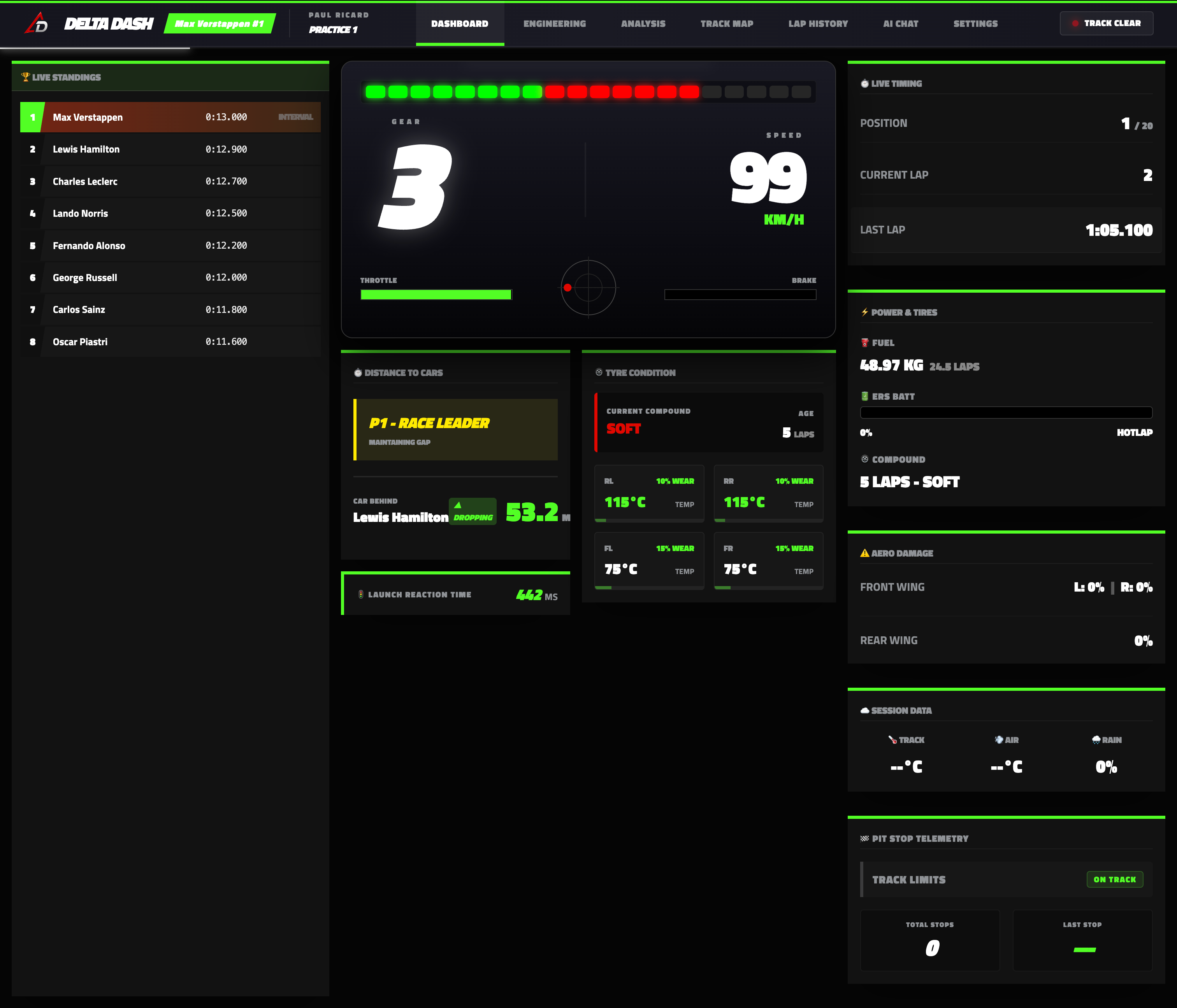
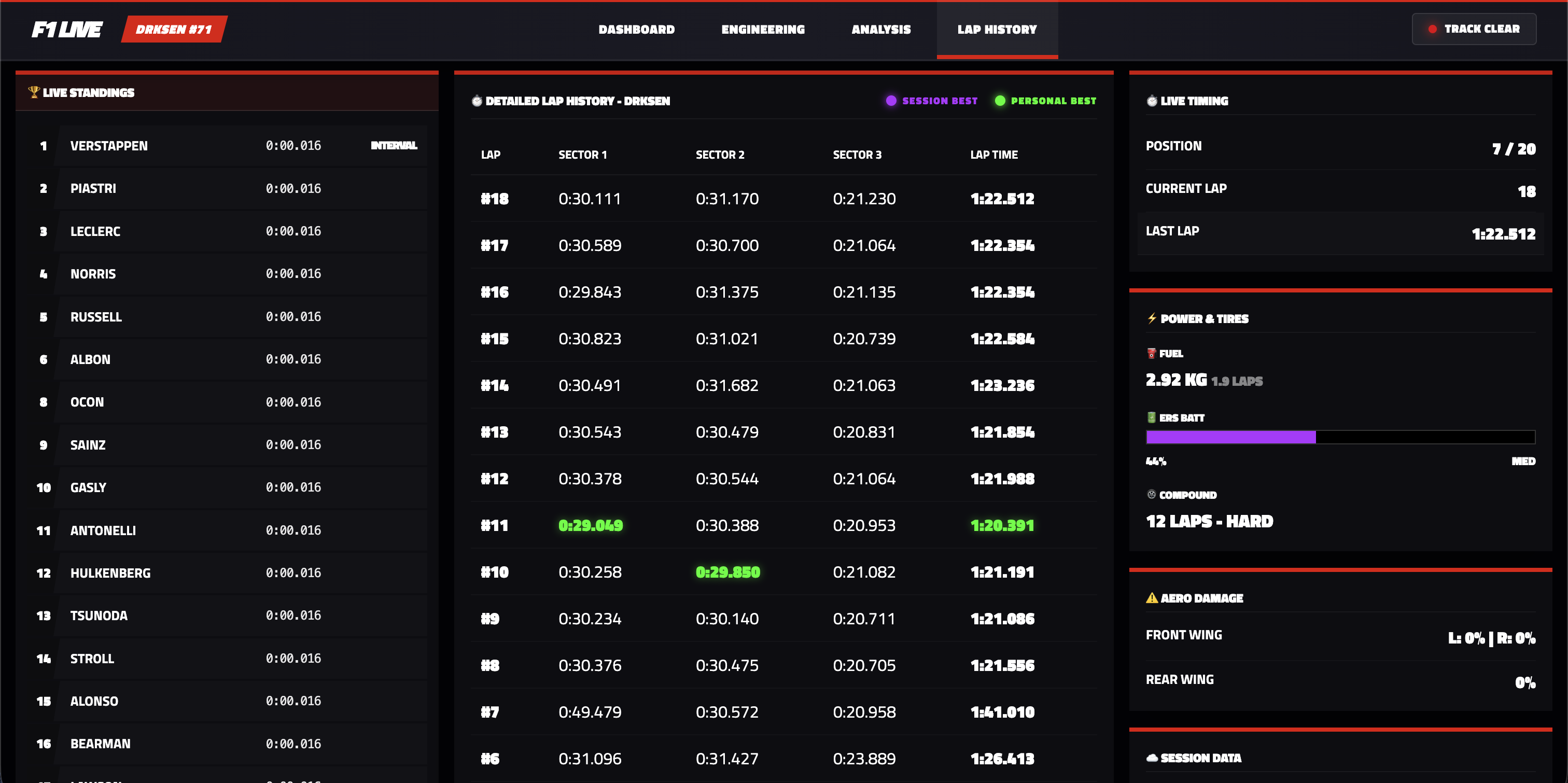
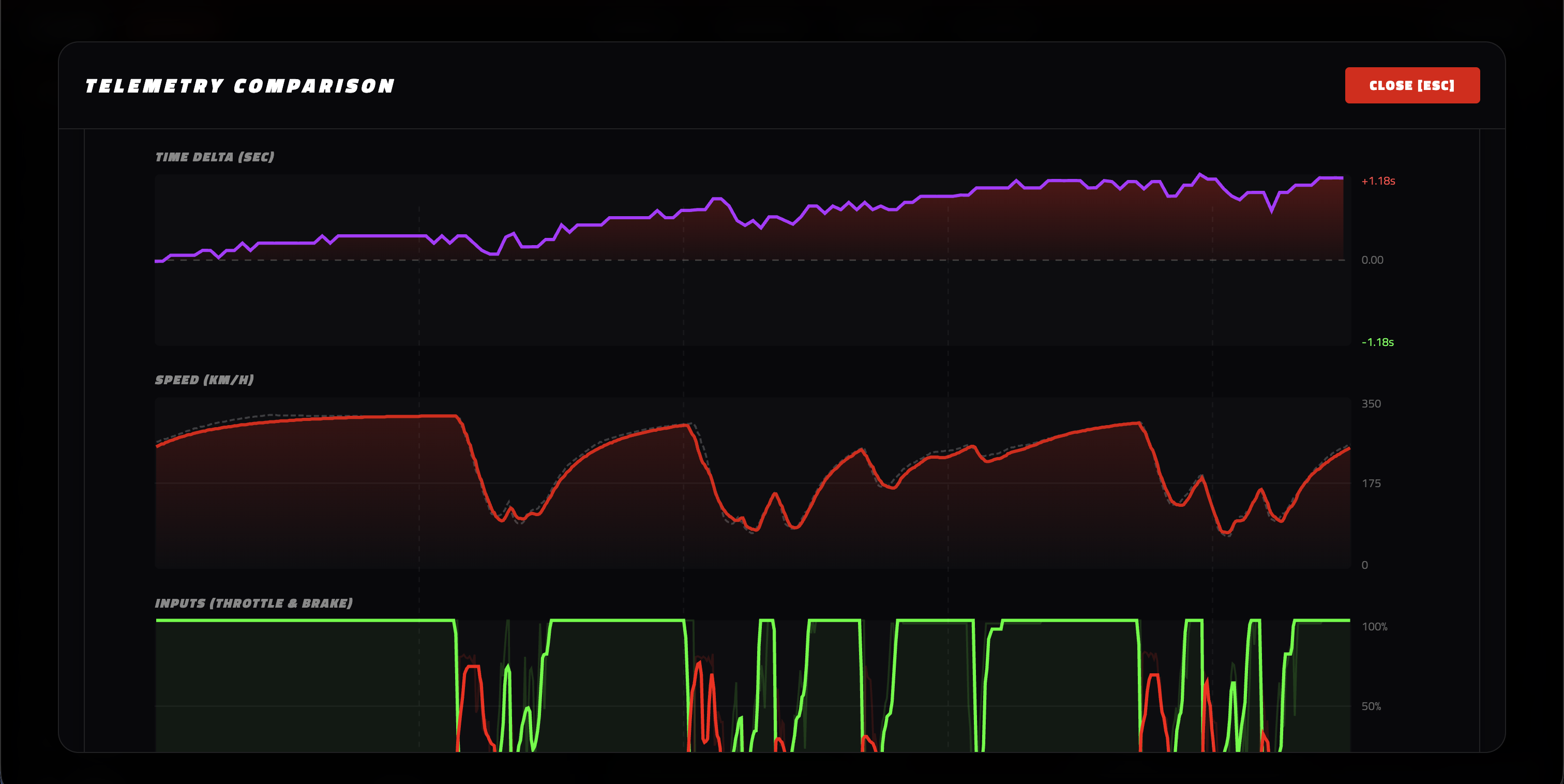
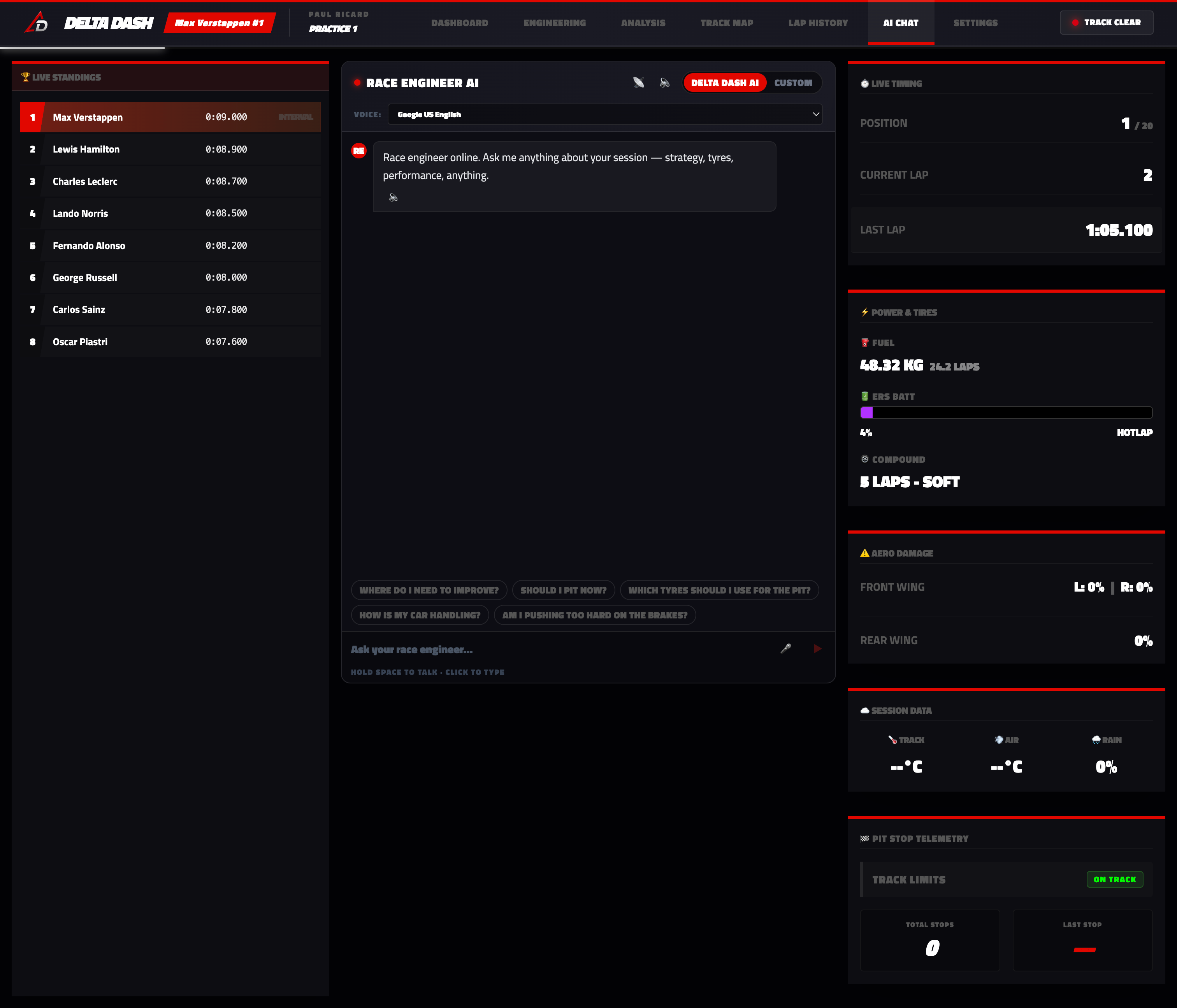
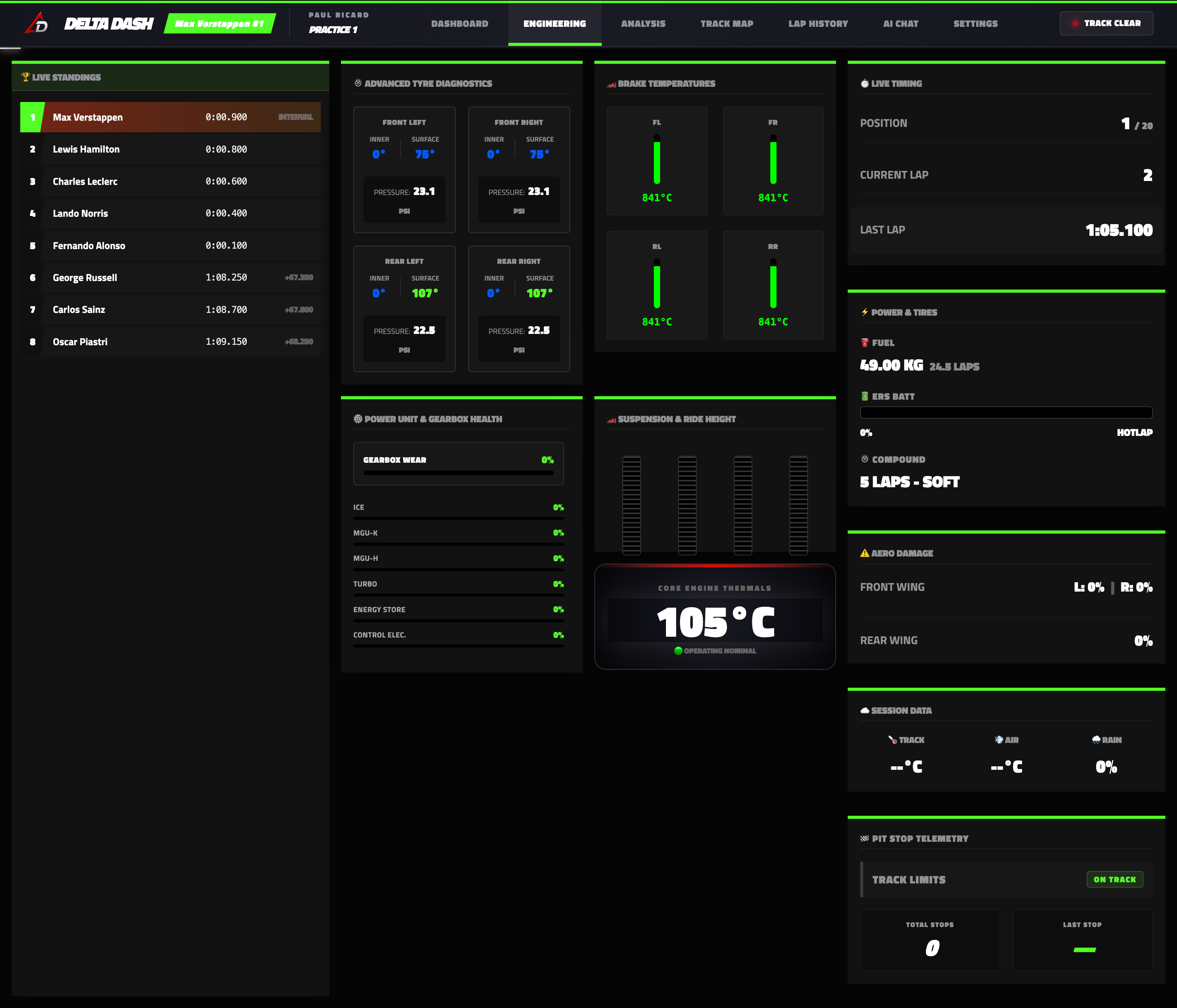
Real views of the Delta Dash interface with the official F1 TV aesthetic.
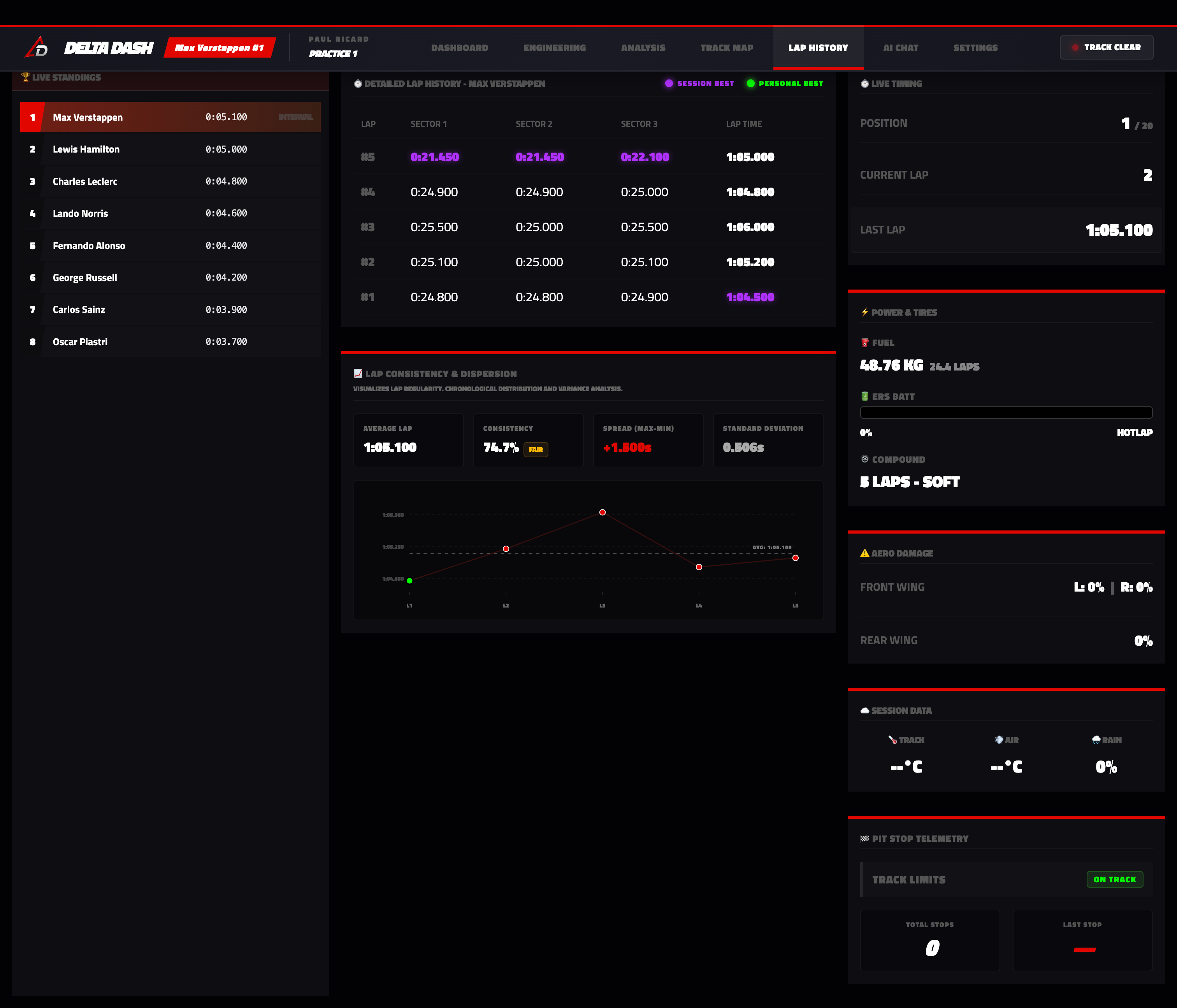
Initial Setup
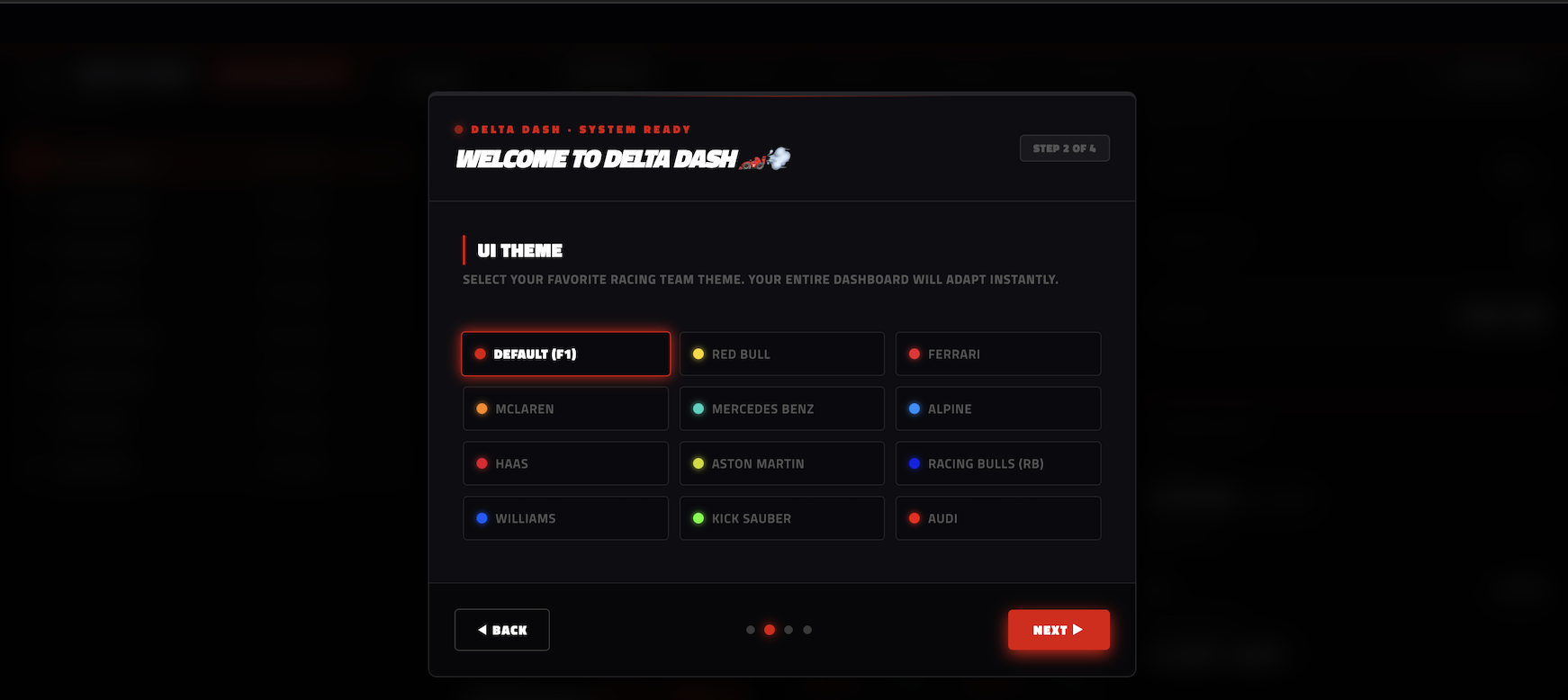
Welcome screen and initial setup: select your favorite team from the grid to customize the UI theme, colors, and overall Delta Dash visual experience.
Key Features
Sync your F1 23, 24, or 25 UDP data and communicate with an advanced generative AI Race Engineer guiding you corner by corner.
AI Race Engineer
Speak via voice or text with a virtual engineer. Receive tactical advice, tyre wear analysis, and customized pit strategies based on your live telemetry.
Live Leaderboard
Monitor the complete field with exact intervals, opponents' tyre compounds, and position changes in real-time.
Performance Analysis
Visualize advanced speed, throttle, and brake telemetry compared against your personal best or other drivers in the session to shave off every millisecond.
Vehicle Status
Maintain absolute control over tyre wear, brake temperatures, fuel, ERS mode, and aerodynamic damage instantly.
How Does It Work?
Set up Delta Dash in less than 3 minutes by following these simple steps.
Download & Install
Download the Delta Dash installer for your operating system directly from this page and run it to install the application on your computer automatically.
Configure In-Game Telemetry
In your game's telemetry settings (F1 23, F1 24, or F1 25), enable UDP data output, set the port to 20777, telemetry send rate to 20Hz or 30Hz, and point the IP address to your computer's local IP.
Launch the App & Race
All set! Open Delta Dash on your computer. If you want to enable AI Race Engineer commentary, enter your API Key in the SETTINGS section, and hit the track to start lowering your lap times!
Installation Instructions
Since Delta Dash is an independent project and does not have an official Apple Developer signature yet, macOS will block its launch by default for security reasons. Follow these simple steps to run it:
- Drag Delta Dash into your Applications folder and try to open it.
- You will see an alert stating it cannot be opened because of an unidentified developer. Click OK.
- Open System Settings on your Mac and navigate to Privacy & Security.
- Scroll down to the "Security" section and click the "Open Anyway" button next to Delta Dash.
- Enter your password or use Touch ID and confirm by clicking "Open" in the popup dialog.
Alternative Method (Fast)
If the steps above do not work or you prefer an instant solution, open your Mac's Terminal and run the following command to automatically find and enable the application:
xattr -cr "$(find /Applications ~/Downloads ~/Desktop -name "Delta Dash.app" 2>/dev/null | head -n 1)"Windows Installation Instructions
Since Delta Dash is an independent project and does not have an official digital signature/license from Microsoft, Windows Defender SmartScreen might display a warning when trying to run the installer. The app is completely safe. Follow these steps to install and run it:
- Double-click the downloaded file Delta.Dash.Setup.1.0.0.exe.
- If the blue SmartScreen warning screen (Windows protected your PC) appears, click the "More info" link.
- Click the "Run anyway" button at the bottom to continue with the installation.